2025-12-29

For the remote wake-up feature commonly used in most centrally managed networks, enabling the corresponding devices on a managed machine in a targeted manner is both convenient and efficient.
Several conditions must be met to implement remote wake-up:
1. The target machine's motherboard must support Wake-on-LAN (including both onboard network and PCI-E);
2. The PCIe network card must have Wake-on-LAN functionality and have it enabled;
3. The network must be properly connected.
1. Motherboard must support Wake-on-LAN
1.1 Some motherboards have “Wake on PCI-E Device” enabled by default, allowing direct use without further action;
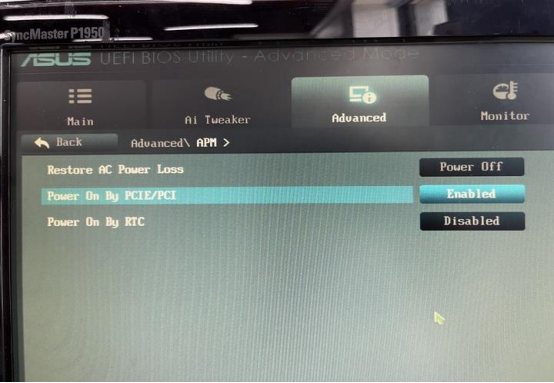
1.2 Some motherboards have ‘Wake on PCI-E Device’ disabled by default. In this case, enable it as shown below: Enter the motherboard BIOS and enable ‘Wake on PCI-E Device’ and ‘Power On By PCI-E/PCI’. Save the settings after configuration.
2. Network card supports Wake-on-LAN functionality
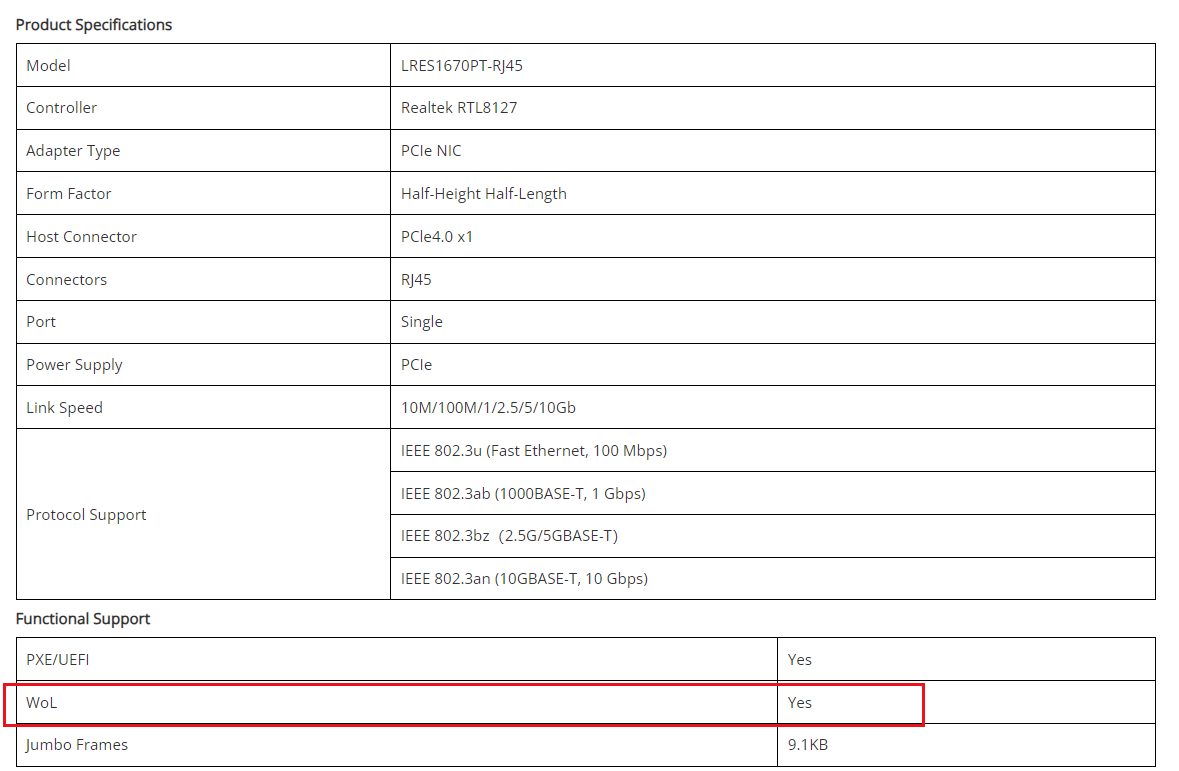
Most product specifications will indicate whether ‘Wake-on-LAN’ or ‘WoL’ is supported.
For example, the specification sheet for the newly launched LRES1670PT-RJ45 (PCIe x1 Single-port 10G Copper Ethernet Network Adapter) from LR-LINK mentions support for Wake-on-LAN (WOL).
3. Verify network connectivity by connecting the cable and ensuring the operating system establishes a normal network connection.
If wake-up still fails despite meeting all three conditions above, check the following:
3.1 For Windows systems (using Intel as an example):
After installing drivers, open the network configuration tool as an administrator. Locate the “Wake on LAN” option under “Power Off State.” This is typically set to ‘Disabled’ by default. Change it to “Enabled,” click “Apply” to save, then exit.
After shutting down the operating system, the corresponding network port's indicator light should illuminate, confirming wake-on-LAN functionality is active.
3.2 For Linux systems
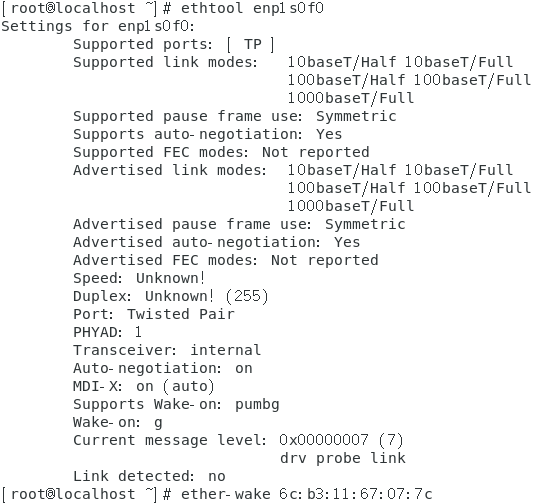
Use ethtool EthX with root privileges to check the current status of supported features;For example, if Wake-on displays: g; this indicates Wake-on-LAN functionality is currently enabled.
If Wake-on displays: d; this indicates Wake-on-LAN functionality is currently disabled.To enable it, execute:#ethtool -s EthX wol g
You can also modify the network interface properties:# cat /etc/sysconfig/network-scripts/ifcfg-EthX;
Add the following content: ETHTOOL_OPTS="wol g"
Save and exit.
That concludes the implementation of the WOL wake-up feature. Hope this helps you.